ZX Screen Snapper
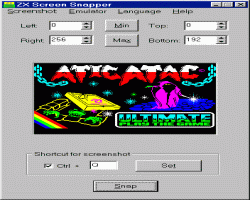
This program you can use for capture screenshots from ZX games. The first you have to run emulator and open some game, ZX Screen Snapper cooperates at the moment with 23 emulators. When you want to capture the screen, click on Snap button or you can press Ctrl + Q (default shortcut). Captured screenshot will be copied to the clipboard, from where can be put in a bitmap editor for next processing.
You can also capture any area of the screen, therefore this program you can use at the moment, when you create some ZX map. All settings you can save separately for every game (Save Settings) for later using (Open Settings). The proportions of captured screenshot are standard - 256 x 192 pixels, this resolution must be adjusted in emulator for correct work. If you click on the screenshot by left mouse button, you can save it in BMP, GIF or PNG format, the screenshot can be saved with duplex, triplex or quadruplex zoom (Screenshot/Output Zoom).
In the situation, when the screenshot is captured incorrectly (you can see a part of the emulator window), choose Adjust Position Manually (F6) from Screenshot menu. You will see a new window, in which you can set screenshot position with the aid of four buttons. This problem is caused that's why emulators have another size of window in different version of Windows, therefore it isn't possible to set universal position of the screenshot. If you adjust the position of a capturing screen, it is suitable to load Testing_frame.z80 snapshot into the emulator. If you see (after capturing) all four edges of the rectangle, the position is adjusted properly.
From the second version you can circumscribe capturing area via polygon. At first you must define vertices of polygon. It is very easy, capture the screen (through the Snap button), press F10 and then click on the picture - in this way you can add any number of vertices. For changing of coordinates use drag&drop method (checkpoints must be checked!). If you have define the polygon then click on Apply Polygon button. It is important to know that the work with polygons is possible only when you capture whole area of the screen (256 x 192 pixels). You can also define a frame around the capturing screenshot, press F12 and set width, spacing and color of this frame. Important notice: There isn't possible to use polygons and frames at the same time!
Gray Pixels (F7) – adds gray pixels around all other pixels, only one color (usually black) is ignored. This tool is ideal for mapping 3D isometric games, where objects are overlapped by other ones.
Text Wrapper (F8) – analyzes text in a bitmap picture and aligns it to the left / center / right.
Scrolling Automapper (F9) - mapping was never so easy with this tool! Just press one key and a map is creating (almost) automatically. This tool is ideal for mapping single-direction scrolling games. All four directions are supported. The algorithm always compares two last screenshots and tries to find intersection of same pixels for both screenshots. If the intersection is found a new screenshot is added at the position of this intersection. That's why this algorithm isn't suitable for moving objects and of course for games with parallax scrolling.
YouTube videos:
Double Size Window, Output Zoom, Scrolling Automapper Tool, Gray Pixels, Text Wrapper
| |
Version: 2.92,  + +  + +  + + 
Released: August 2002 - April 2015
Operating system: Windows 9X/2000/XP/Vista/7
Download: Screensnap.zip (360 KB)
|
|



